

Main Layout
When you log in to Predicade: You can see three main components: Control Panel (left), Alert Stream (right), and Profile (top right) with the service notifications (bell icon). If you haven’t set up trading yet, an Activate Trading button appears in the header. Once trading is enabled, your Polymarket balance is displayed next to your username. Let’s explore each part!The Control Panel (Left Side)
This is your control panel - like the cockpit of a plane. Everything you need to configure is here.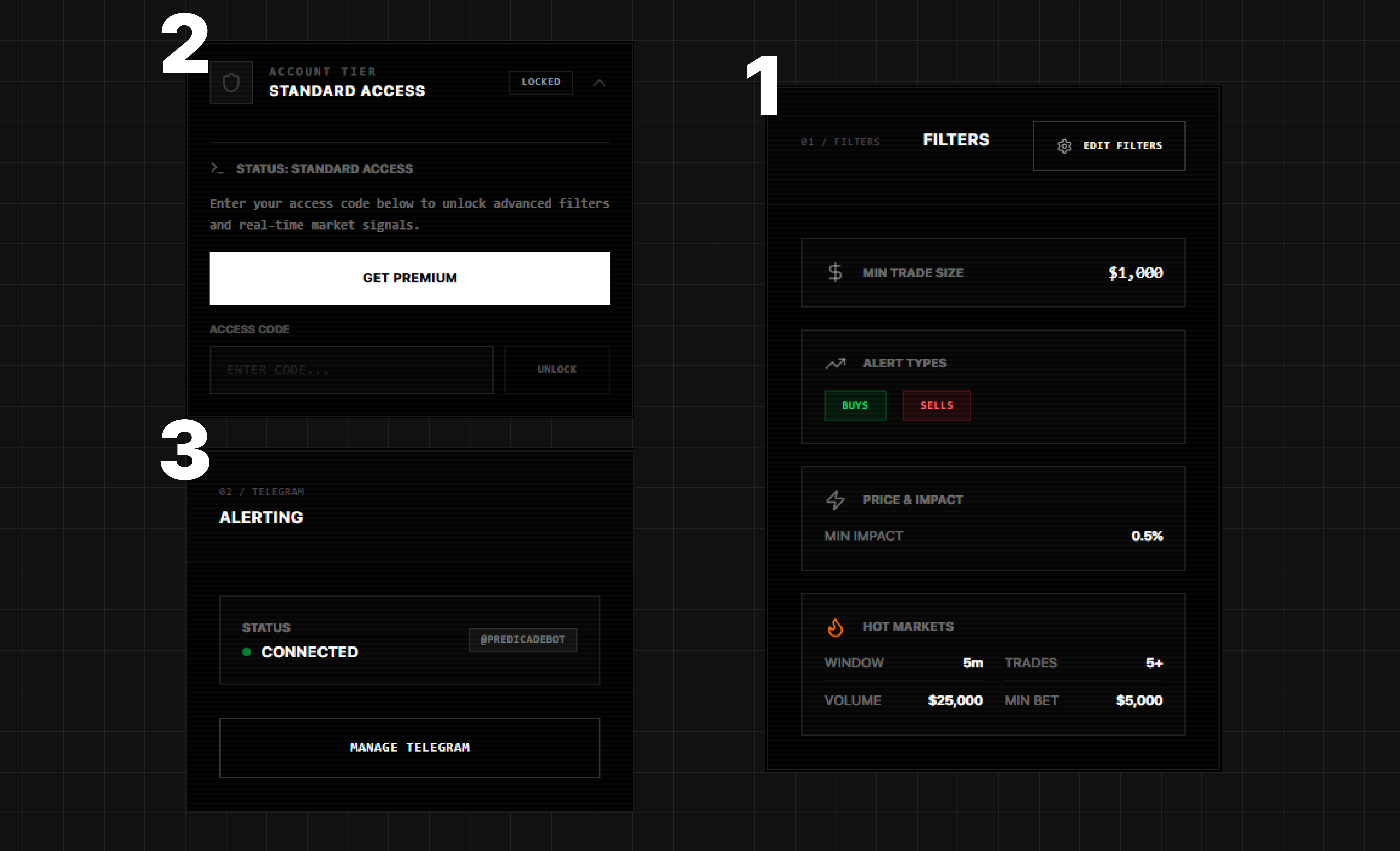
1. Filters Section
Quick overview of your current filter settings:| Element | What It Shows |
|---|---|
| Min Trade Size | Minimum trade amount to trigger alerts |
| Alert Types | Which trade types you’re tracking (Buys/Sells) |
| Price & Impact | Minimum price impact threshold |
| Hot Markets | Detection window, trade count, volume, and min bet settings |
| Time Window | Time range filter for alerts (if enabled) |
| Categories | Market categories you’re tracking (if enabled) |
2. Account Tier Section
Shows your subscription status:- Standard Access - Free tier with default filter limits
- Premium - Full access to all features
- Click Get Premium to purchase a subscription
- Enter an Access Code to redeem a premium code
3. Alerting Section
Manage your Telegram notifications:| Element | What It Shows |
|---|---|
| Status | Connection status (Connected/Disconnected) |
| Bot Handle | Your linked Telegram bot (@PREDICADEBOT) |
The Alert Stream (Right Side)
This is where the action happens! Every time someone makes a big trade that matches your filters, it appears here.Understanding an Alert Card
Each alert shows: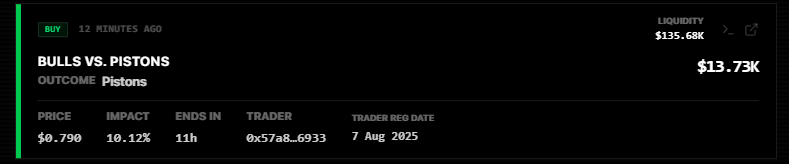
| Element | Meaning |
|---|---|
| BUY (green) / SELL (red) | Trade direction - BUY means trader thinks YES, SELL means NO |
| Time | How long ago the trade happened (e.g., “12 minutes ago”) |
| Liquidity | Total liquidity of the market |
| Quick Buy (⚡) | Hover to expand preset buy amounts (5K) and custom input |
| Terminal icon | Click to open trading terminal for this market |
| External link icon | Click to open this market on Polymarket |
| Market name | The market being traded (e.g., “BULLS VS. PISTONS”) |
| Outcome | Which outcome was traded (e.g., “Pistons”) |
| Trade size | Size of the trade in dollars (large number on the right) |
| Price | Current probability (0.790 = 79% chance) |
| Impact | Liquidity Impact of the trade |
| Ends in | Time until market resolution |
| Trader | Trader wallet address (shortened) |
| Trader reg date | When the trader’s wallet was first seen |
Reading the Price
Prices on Polymarket represent probabilities:| Price | What It Means |
|---|---|
| $0.10 | Market thinks 10% chance |
| $0.50 | Market thinks 50% chance (coin flip) |
| $0.90 | Market thinks 90% chance |
Example: If a market “Will Team A win?” shows $0.75, the market thinks there’s a 75% chance Team A will win.
Profile Page
Click on your wallet address in the top right corner to access your profile page.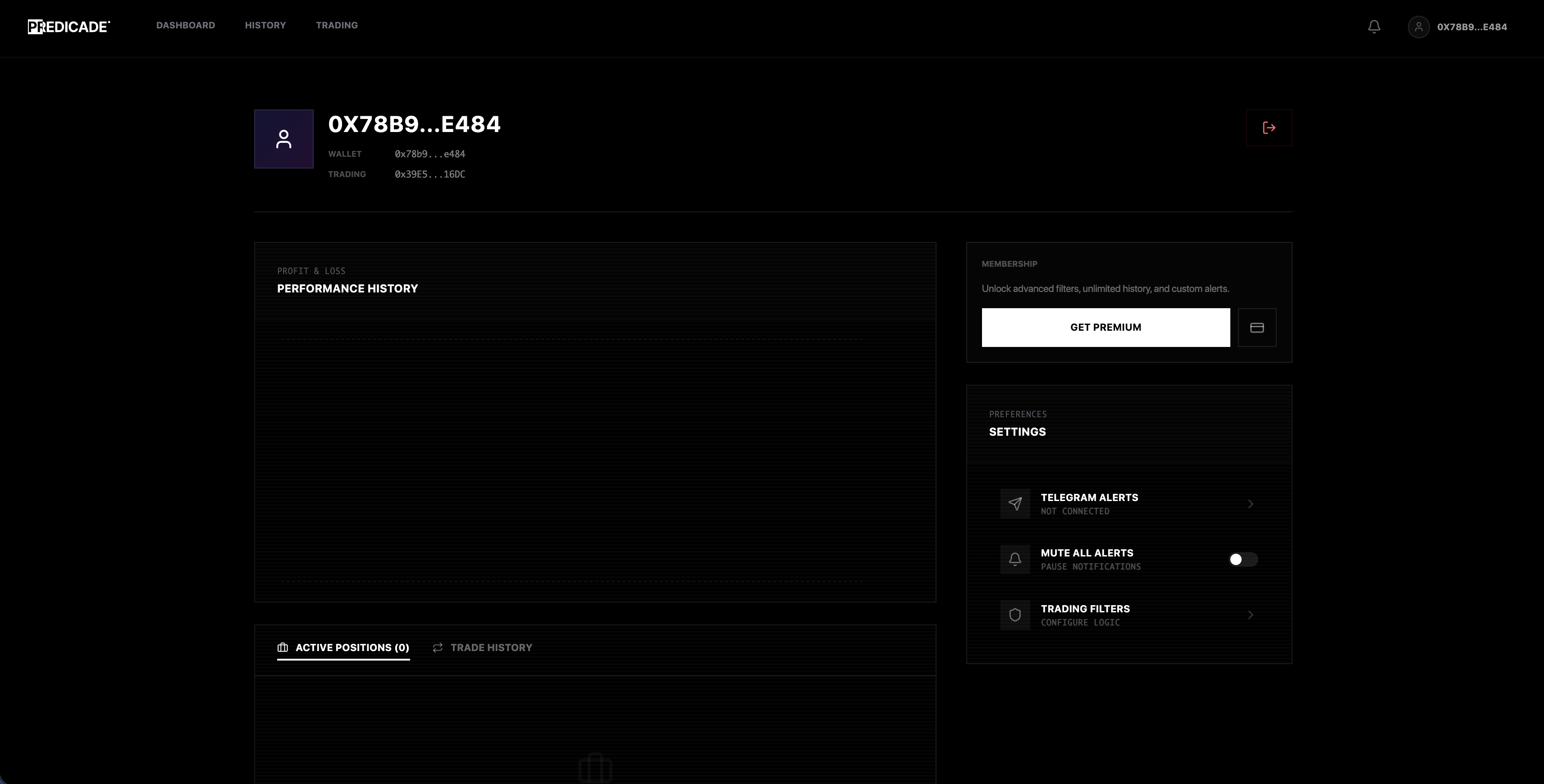
Profile Header
| Element | What It Shows |
|---|---|
| Wallet Address | Your connected wallet (e.g., 0x3850…9165) |
| WALLET | Your main wallet address |
| TRADING | Your Polymarket proxy wallet (Gnosis Safe) address |
| Logout icon | Click to disconnect your wallet |
Performance History
The PROFIT & LOSS section displays your trading performance over time. Track your gains and losses with the performance chart. Below the chart, you’ll find two tabs:- ACTIVE POSITIONS - Your current open positions on Polymarket
- TRADE HISTORY - Record of your past trades
Membership
Shows your current subscription tier and allows you to upgrade:- Click GET PREMIUM to unlock advanced filters, unlimited history, and custom alerts
Settings
Configure your preferences:| Setting | Description |
|---|---|
| Telegram Alerts | Connect or manage your Telegram notifications |
| Mute All Alerts | Toggle to pause all notifications |
| Trading Filters | Configure your alert filter logic |
Status Indicators
Look for these visual cues:- Green dot - Connected and receiving live data
- Yellow dot - Reconnecting or paused
- Red dot - Connection lost
Troubleshooting Display Issues
Page looks broken or unstyled
Page looks broken or unstyled
- Try refreshing the page (CTRL+SHIFT+R or CMD+SHIFT+R)
- Clear your browser cache
- Try a different browser
Alerts aren't appearing
Alerts aren't appearing
- Check if filters are too restrictive
- Verify you’re connected (check status indicator)
- Try lowering the minimum trade size filter
Can't see certain buttons
Can't see certain buttons