

Connecting Your Account
Open Alerting Settings
In the Control Panel, find the Alerting section and click “Connect Telegram”.
Get Your Code
A 6-digit access code will be generated. Click “Open Telegram” to open the bot automatically.
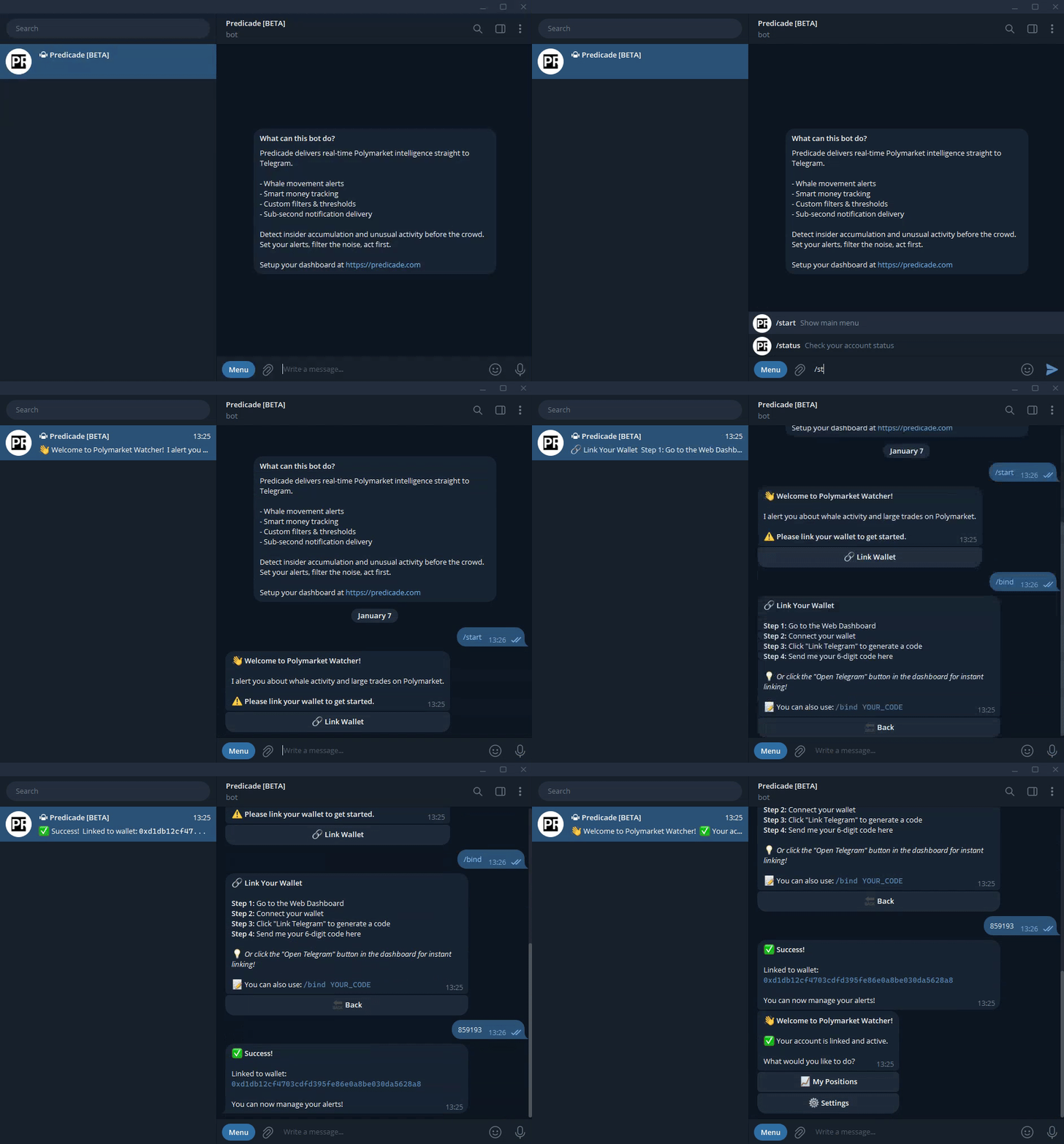
Using the Bot
Once connected, send/menu to open the main menu. Use the buttons to navigate - no need to memorize commands.
| Button | What It Does |
|---|---|
| My Positions | View your current Polymarket holdings |
| Settings | Manage filters, pause alerts, view account status |
Editing Filters
From Settings, tap Edit Filters to adjust your alert criteria. The bot provides the same controls as the web app: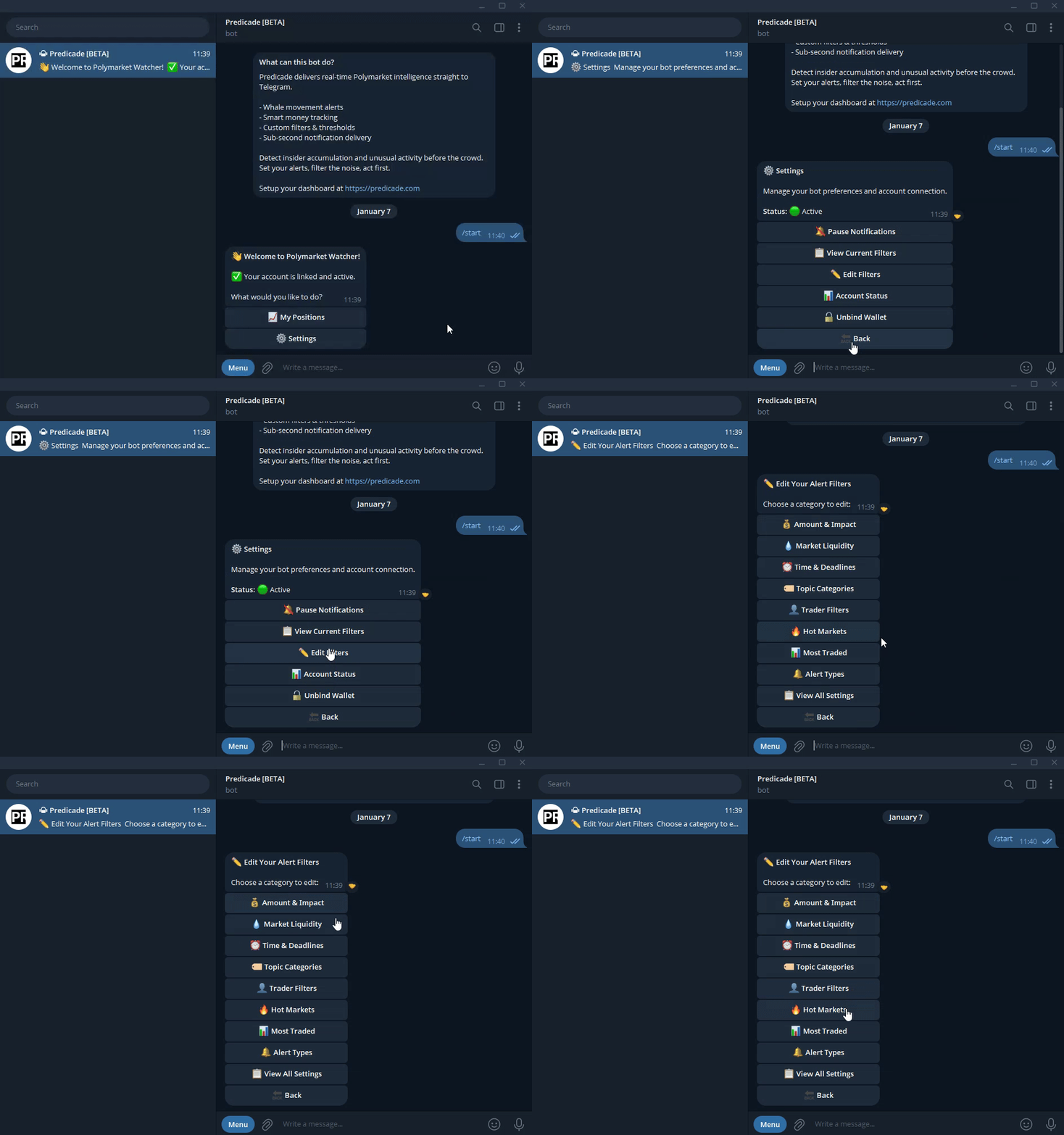
| Filter | Controls |
|---|---|
| Amount & Impact | Trade size, price range, liquidity impact |
| Time & Deadlines | Market close time filters |
| Topic Categories | Toggle market types on/off |
| Trader Filters | Account age requirements |
| Alert Types | Buy/sell separately |
Viewing Positions
Tap My Positions to see your active Polymarket holdings: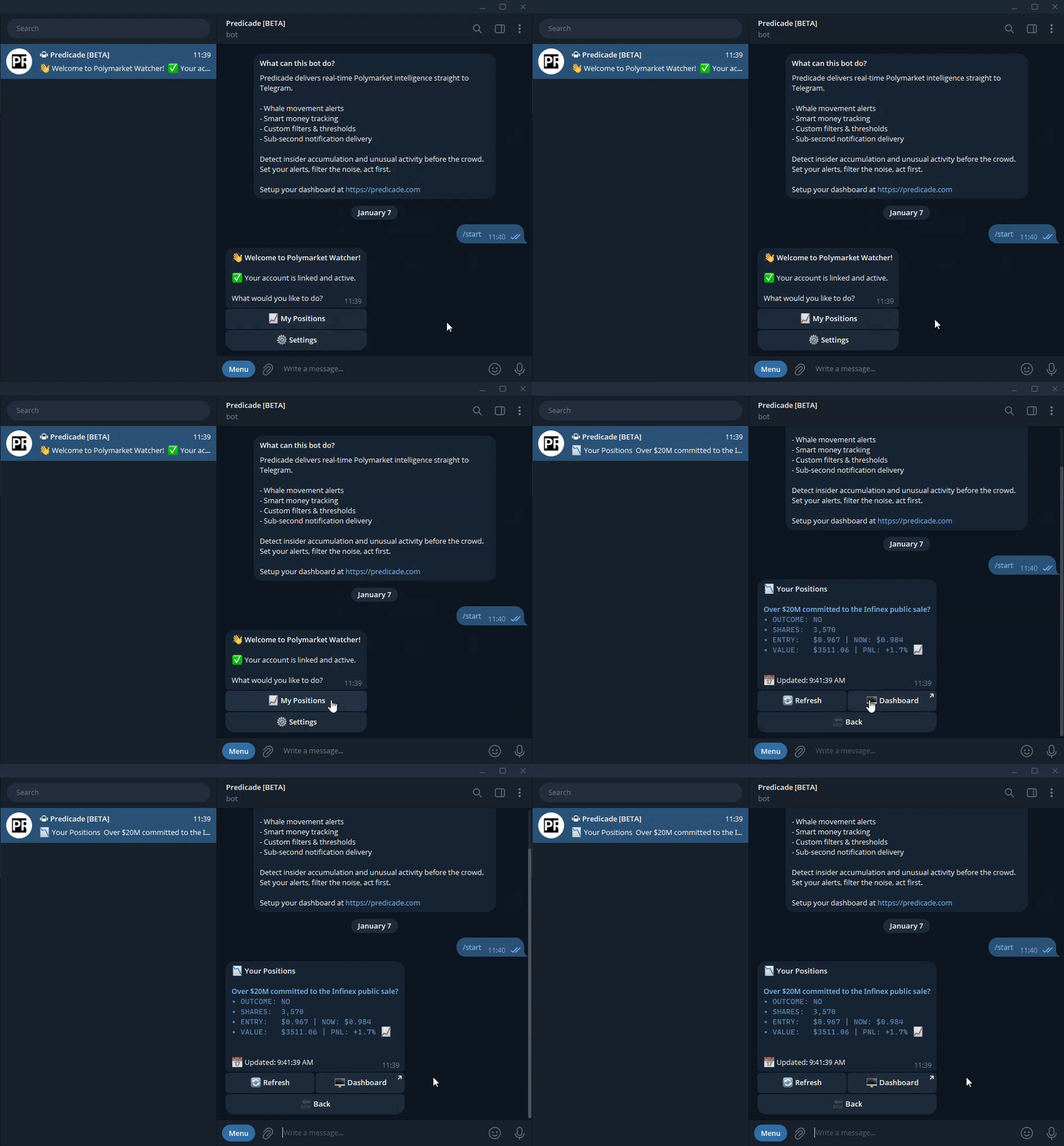
Pausing Notifications
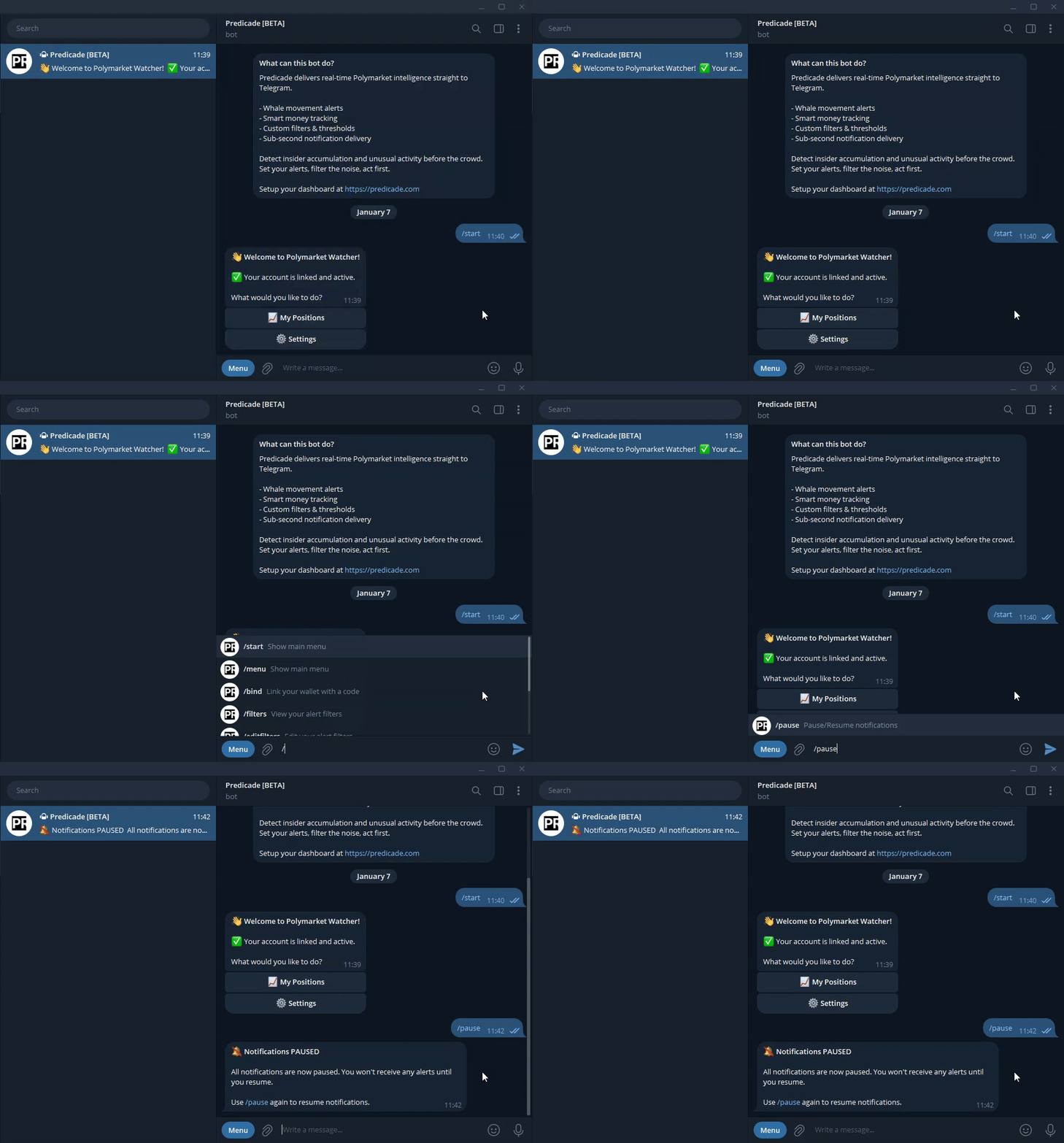
Need quiet time? Toggle notifications off from Settings or use/pause. Your filters stay intact.
Disconnecting
Click “Manage Telegram” in Command Center, then “Disconnect”. Reconnect anytime by generating a new code.Troubleshooting
Not receiving notifications
Not receiving notifications
Check that:
- Notifications toggle is on in Predicade
- Telegram app notifications are enabled on your device
- Bot isn’t blocked
- Filters aren’t too restrictive
Code not working
Code not working
Codes expire quickly. Generate a fresh one and use immediately.